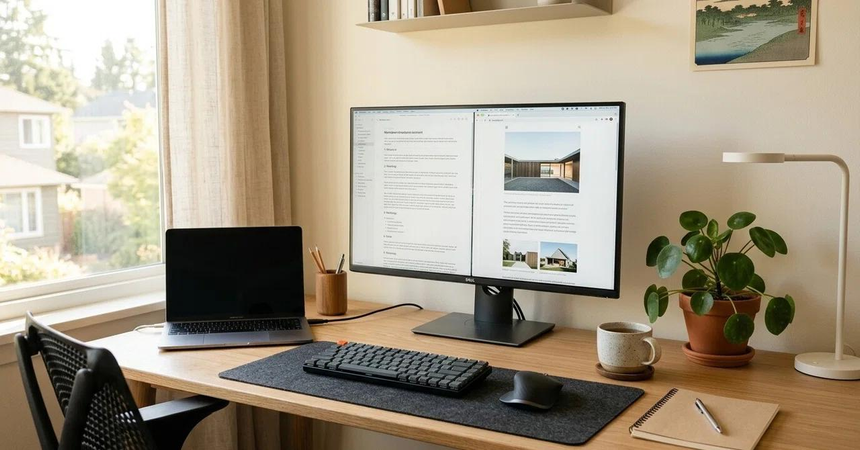
Creating a comfortable PC setup can be a tricky task. Whether you live in a small apartment, work from home, or spend long hours in front of a screen, you need to think about how to maximize the limited space you have. In this guide, we bring you 12 quick and easy tips that will make your workspace more comfortable and functional.
1. Raise Your Monitor to Eye Level
Adjusting your monitor height is one of the easiest and most effective ways to improve the comfort of your PC setup. If you find it difficult to look at the screen for a long time, try raising your monitor. You can use a monitor stand or monitor riser to position the display higher than the desk. This can help reduce neck strain caused by constantly looking down.
Moreover, you can use the space below the monitor to place your keyboard, notebook, or other accessories. If you are using a laptop as your main device, a laptop stand will help raise the display. To type comfortably on a laptop for more than a few hours a day, consider getting a separate keyboard and mouse.
Things to Consider:
- Monitor stand or riser suitable for the size of your monitor or laptop
- Extra desk space to accommodate the stand and monitor or laptop
2. Get a Comfortable Keyboard and Mouse
If you find that your keyboard and mouse are uncomfortable to use, they can affect your entire setup. Large keyboards and mice take up a lot of desk space, leaving you with fewer options for organizing your workspace. A good way to optimize space is to choose a compact wireless keyboard and mouse.
Besides saving space, wireless keyboards and mice can make your desk look more attractive. They also free up desk space by eliminating unnecessary cords. Make sure you can type comfortably on the keyboard and that the mouse does not cause discomfort when you use it for long periods.
Another thing to consider is the position of your keyboard and mouse. To avoid strain on your wrists and arms, place them so that you do not have to extend your arms forward to type and click.
If you often switch between a laptop and a desktop computer, a wireless keyboard and mouse can make it easier to maintain a consistent working position.
3. Use a Laptop Stand
If you use a laptop as your main device, you may need more space on your desk. Using a laptop stand, you can raise the display and create more room for other accessories. When choosing a stand, make sure it is suitable for your laptop’s size, holds it securely, and does not slip.
Laptop stands can be used in various situations, from small apartments to shared workspaces. Some stands are foldable and can be stored in a bag or drawer when not in use. Another advantage is that a stand allows you to use a separate keyboard and mouse, giving you more flexibility and helping you position the display at a comfortable height.
Things to Consider:
- Size and weight of the laptop stand
- Other items placed behind the laptop
- Available desk space
4. Use Cable Clips to Optimize Space
It is easy for cables behind your PC to become tangled. Monitor power cords, keyboard and mouse cables, USB cords, laptop power cables, and other wires can take up a lot of space. However, you do not need a large desk with built-in cable management to organize them. Several inexpensive options can help you optimize the space behind your PC.
You can use cable clips and cable ties, adhesive clips, or an under-desk cable management tray to organize power and data cords. A cable tray holds wires in one place and helps keep them off the floor. If you do not want to use a tray, regular clips or reusable hook-and-loop ties can help bundle the cords together.
Make sure frequently used items remain within easy reach. You do not want to reach behind your PC every time you need your phone charger. While arranging cables, give some thought to the items you use less frequently.
Things to Consider:
- Type and number of cords
- Available space behind and underneath the desk
- Accessibility of the cords
5. Improve the Lighting
Lighting in modern apartments can make it easier to see things in the evening. However, if the lighting in your workspace is uncomfortable, you may want to get a small desk lamp.
Another advantage of a desk lamp is that you can adjust its brightness. Some lamps also offer color temperature settings that allow you to choose warmer or cooler lighting according to your preferences.
Make sure the shape of the lamp suits the size of your desk. You want it to take up as little space as possible while remaining comfortable to use. A lamp with an adjustable arm can be a great option. Some lamps have a clip that allows them to attach to the edge of the desk.
You should also make sure the lamp does not create glare on your computer screen. If possible, combine your desk lamp with additional room lighting rather than relying on a single light source.
Things to Consider:
- Size of the desk
- Lighting options, including adjustable brightness
- Distance from the PC screen
6. Get a Desk Mat
The surface of your desk can affect how comfortably you use your mouse and keyboard. Some small desks have rough surfaces that can scratch your devices. To address this problem, you can get a desk mat that fits your available workspace. It creates a more consistent working surface and helps protect your desk from scratches.
Another advantage of a desk mat is that it can help keep your workspace organized. You can use it as a central area for your keyboard and mouse. Desk mats come in various sizes and shapes, so if you have a small desk, measure the available space and consider the size of your keyboard, mouse, and other accessories before buying one.
Things to Consider:
- Size of the desk
- Size of your keyboard, mouse, and other accessories
- Comfort and freedom of movement for your mouse and keyboard
7. Make Your Chair More Comfortable
The comfort of your PC setup can be affected by the chair you use. If your chair is uncomfortable, even the best PC setup may become difficult to use. The first thing to do is make sure your desk and chair are at the right height. Your feet should rest flat on the floor, and your shoulders should remain relaxed.
Move your chair close enough to the desk so that you do not have to stretch your arms forward to type. If your chair is too hard, you can buy a seat cushion to make the seating surface more comfortable.
If your chair does not provide enough lower-back support, a lumbar support cushion may help. The best chair adjustments and accessories depend on your needs, so take time to find an option that works for you.
Things to Consider:
- Comfort and adjustability of the chair
- Seat cushions and lumbar support options
- Footrest options if the chair is too high
8. Use a USB-C Hub
Modern laptops often have limited ports. One port may be used for charging, another for a display, and others for different accessories. As a result, you may find that you do not have enough connections for everything you need.
A USB-C hub can help solve this problem. Depending on the model, a USB-C hub may include several USB-A ports, an HDMI port, a card reader, and additional USB-C connections. You can connect compatible accessories through one compact device, helping keep your desk organized.
Before buying a USB-C hub, make sure your laptop is compatible with it and supports the functions you need. Some USB-C ports only support certain features, so check whether your laptop and chosen hub support display output, data transfer, and charging as required.
Things to Consider:
- USB-C ports and supported functions on your laptop
- USB-C hub features, including display output, charging, USB-A, and card readers
9. Add Storage Without Taking Up Desk Space
Small items you use every day can take up valuable desk space. If you have a small desk, these items can make your PC setup less convenient. Therefore, it is worth finding storage options that allow you to organize these items without occupying too much space.
A compact desk drawer organizer can hold pens, erasers, sticky notes, and other small supplies. You can also use a desktop storage organizer to store frequently used accessories. Keeping these items organized helps prevent clutter from spreading across the desk.
If you have enough room, you can also use a small basket or drawer to hold larger items. However, make sure it does not interfere with your legs or mouse movement while you work.
Things to Consider:
- Items that need to be stored
- Size of the drawer or organizer
- Amount of space taken up by the storage solution
10. Place Frequently Used Accessories Within Easy Reach
Essential accessories should be positioned so that they are easy to reach. For example, your keyboard and mouse should be directly in front of you. Your notebook should be close enough for writing down important points without disrupting your setup.
Your phone and other devices should also be placed within easy reach. Accessories such as USB drives, chargers, and headsets should have designated locations so that you can find them quickly.
You can use a headphone stand or an under-desk headphone hook to keep your headphones off the desk. A charging station can also help you organize charging cables and devices without cluttering your workspace.
When choosing locations for these items, make sure you have enough room to work comfortably.
Things to Consider:
- Most frequently used accessories
- Distance from the keyboard and mouse
- Other items that could clutter the PC setup
11. Get a Monitor Arm if Possible
If your monitor occupies almost the entire desk, you may benefit from a monitor arm. A monitor arm can lift the screen off the desk surface, freeing up room for other accessories. It also allows you to adjust the monitor’s height and angle, helping you create a more comfortable PC setup.
However, not all monitors and desks are suitable for use with a monitor arm. Before purchasing one, make sure your desk can safely support the mounting hardware and monitor. You should also consider the thickness and material of the desk, as well as the weight and mounting compatibility of your monitor.
If your desk cannot safely support a monitor arm, you can use a freestanding monitor riser instead.
Things to Consider:
- Compatibility of the desk and monitor
- Weight and dimensions of the monitor
- Desk thickness and mounting requirements
12. Create a Routine for Maintaining Your PC Setup
Regardless of how well you organize your PC setup, it can eventually become cluttered. To avoid this problem, develop a routine that helps you keep your workspace tidy.
At the end of the day, spend a few minutes putting papers, notebooks, and other items back in their proper places. Make sure the cords are not tangled or bunched together. If you use a laptop, you can also consider a vertical laptop stand to store it upright when it is not in use, provided the stand is suitable for your device.
You can also make small adjustments at the beginning of the day. For example, check that your monitor is at a comfortable height, your chair is properly positioned, and your keyboard is in the right place. Rearranging your setup occasionally can help you discover whether small changes make your workspace more practical.
Things to Consider:
- Items that should be returned to their proper places
- Adjustments to make at the beginning of the day
- Personal preferences for arranging accessories
Final Thoughts
Creating a comfortable PC setup does not require you to invest a fortune in new furniture and accessories. In most cases, a few small adjustments can improve your workspace without requiring you to buy a new desk.
Start with essential changes, such as adjusting your monitor height and finding a comfortable position for your keyboard and mouse. Organize your cables, improve the lighting, and make sure your chair provides suitable support.
Finally, consider adding useful accessories such as a laptop stand, desk mat, USB-C hub, or compact organizer based on your needs and available space. With a little planning, you can create a comfortable, organized, and functional computer setup using the desk you already have.
Amazon Affiliate Disclosure: As an Amazon Associate, I earn from qualifying purchases. If you buy something after clicking an Amazon.com link in this article, I may earn a commission.