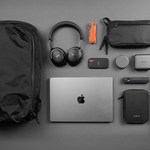
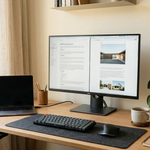
Using multiple computers can be more trouble than it’s worth. You might have a desktop at home, a laptop at the office, and another computer at a second home or while traveling. Transferring photos, files, videos, and documents from one computer to another can quickly become frustrating.
Thankfully, an external solid-state drive (SSD) can store your files and data and be used with multiple computers, provided they have compatible connections.
However, not every SSD fits everyone’s needs, so it’s important to know what to look for before purchasing one.
In this guide, we’ll cover the best external SSDs for people who use multiple computers and explain what you should consider before making a purchase.
1. Samsung T7 Portable SSD
The Samsung T7 Portable SSD is an excellent option for people who frequently transfer files between computers. The T7 is small enough to fit in a bag or carry-on while offering plenty of storage space for large amounts of data.
The drive connects via USB 3.2 Gen 2 and boasts sequential read speeds of up to 1,050 MB/s and sequential write speeds of up to 1,000 MB/s.
Although the advertised speeds are impressive, actual performance depends on your computer’s connection, the files being transferred, and other operating conditions.
For those who regularly work with documents, photo editing, and large project transfers, the T7 comes in multiple storage capacities to suit different needs.
The T7 is also convenient for traveling between multiple locations with your laptop or computer.
Best For: Everyday file transfers and travel
The T7 is available in several storage capacities, including 1TB, 2TB, and 4TB options.
Make sure the capacity suits your needs and the files you plan to store. As mentioned earlier, the T7’s advertised speeds may not be achievable when using an older USB connection or transferring large amounts of data.
Check Samsung T7 Portable SSD on Amazon
2. Samsung T7 Shield Portable SSD
The Samsung T7 Shield Portable SSD is similar to the standard T7 in size and advertised speeds, but it features an additional protective exterior. This makes the T7 Shield more rugged, although that does not mean it is unbreakable.
The drive connects via USB 3.2 Gen 2 and boasts sequential read speeds of up to 1,050 MB/s and sequential write speeds of up to 1,000 MB/s.
For people who travel frequently and work on the go, the drive’s additional protection can be particularly useful. It can also store large amounts of data for transferring between multiple computers.
While the drive is designed for durability, it can still be damaged by accidents and unsuitable conditions like any other computer peripheral.
The T7 Shield comes in several storage capacities to suit different needs.
Best For: Travelers, photographers, and videographers
Due to its increased durability, the drive is slightly bulkier than the standard T7.
Before purchasing, consider the size of the files you’ll be transferring and whether the drive’s dimensions and capacity suit your needs.
Always back up important files in another location.
Check Samsung T7 Shield Portable SSD on Amazon
3. Crucial X9 Portable SSD
The Crucial X9 Portable SSD is another excellent option for people who regularly transfer files between computers. The X9 is compact and easy to carry between locations. It uses solid-state storage and offers sequential read speeds of up to 1,050 MB/s.
The Crucial X9’s advertised speed makes it suitable for everyday file transfers, photo editing, and general storage needs. If you plan to use the drive daily, choose a capacity that will accommodate your files over time.
If you regularly work with large files that require faster-than-average external storage, the X9 may be suitable for many tasks, although users with more demanding workflows may prefer a faster model.
The X9 can be used to store and transfer files between computers. However, it does not automatically back up your data or replace a complete backup solution.
For everyday users who need a compact device to carry in a bag and transfer files, the X9 is a practical option.
Best For: Everyday use and regular file transfers
Depending on your workload, the X9 may not be the best portable SSD for every situation. Its advertised read speeds of up to 1,050 MB/s may be less suitable for users who need the highest possible transfer performance. Make sure the drive is compatible with your computer’s connections.
Check Crucial X9 Portable SSD on Amazon
4. Crucial X10 Pro Portable SSD
The Crucial X10 Pro Portable SSD is designed for people who need more speed and performance from their portable storage. It offers advertised sequential read speeds of up to 2,100 MB/s and sequential write speeds of up to 2,000 MB/s.
These speeds make the X10 Pro a strong option for transferring large files between computers and laptops, provided the connected devices support the required performance.
Unless you regularly work with large files such as photographs and videos, you may be perfectly comfortable with the X9 or another portable SSD with similar speeds. Check that your computer supports the X10 Pro’s advertised performance before purchasing.
The X10 Pro is particularly useful for photographers, videographers, and professionals who work with large project files. Transferring large files between computers can be time-consuming, but a faster portable SSD can help streamline the process.
You’ll also want to make sure the programs you use support working with external storage devices.
Best For: People who work with large files and need fast transfers
Although the X10 Pro offers faster advertised speeds than many portable SSDs, it is not always the best option. If you only transfer large files occasionally, a less expensive drive may be sufficient.
Additionally, your computer will need a compatible high-speed connection to take advantage of the X10 Pro’s performance.
Check Crucial X10 Pro Portable SSD on Amazon
5. SanDisk Extreme Portable SSD
The SanDisk Extreme Portable SSD is another excellent option for people who regularly transfer files between computers. The drive is small enough to carry in a bag or pocket while offering sequential read speeds of up to 1,050 MB/s in applicable versions.
Its advertised performance puts it in a similar category to portable SSDs such as the Samsung T7 and Crucial X9.
The drive is compact and can easily be carried between different locations. However, the SanDisk Extreme comes in different versions, which may have different advertised speeds, features, and prices.
The SanDisk Extreme can store documents, photographs, videos, and other data. If you’re looking for a portable SSD to move files between computers, it is worth considering.
Best For: People who travel or work with large files
When purchasing the SanDisk Extreme, compare the advertised speeds and prices of the different versions.
Make sure the drive you choose is compatible with your devices.
Check SanDisk Extreme Portable SSD on Amazon
6. SanDisk Extreme PRO Portable SSD
The SanDisk Extreme PRO Portable SSD is designed for people who need faster performance from their portable storage. Depending on the version, the drive offers sequential read speeds of up to 2,000 MB/s and sequential write speeds that vary by model.
People working in photography, videography, and similar industries may benefit from the additional performance. Large files can be difficult to manage and transfer, particularly when you’re doing it regularly.
If you frequently move large files between computers, a faster portable SSD can help save time. However, faster drives are often more expensive, and your computer must support the necessary connection speeds to take advantage of their performance.
Best For: Photographers, videographers, and people who work with large files
Because of the drive’s price, consider whether its performance is worth the additional cost for your needs.
If you only transfer large files occasionally, a less expensive portable SSD may be sufficient.
Make sure to compare the drive’s advertised speeds with the connection capabilities of your computer.
Check SanDisk Extreme PRO Portable SSD on Amazon
7. Kingston XS1000 External SSD
The Kingston XS1000 External SSD is another portable option for people who need to transfer files between multiple computers. Despite its small size, it offers advertised sequential read speeds of up to 1,050 MB/s and sequential write speeds of up to 1,000 MB/s.
The external SSD is compact enough to carry in a bag or purse, making it convenient for moving between locations. Actual performance depends on your computer’s connection and the type of files being transferred.
The Kingston XS1000 is worth considering for people who travel frequently and want a compact storage device. If you mainly transfer files between a laptop and desktop, it may provide sufficient performance for everyday use.
Best For: People who travel or regularly transfer files
Before purchasing the Kingston XS1000, make sure its storage capacity and advertised speeds meet your needs.
Also, consider how you’ll carry and protect the drive when traveling.
Check Kingston XS1000 External SSD on Amazon
8. WD My Passport SSD
The WD My Passport SSD is another portable drive that can be used to transfer files between multiple computers. It is compact enough to fit in a bag or sit conveniently on a desk.
The drive comes in different storage capacities, and certain versions offer sequential read speeds of up to approximately 1,050 MB/s. Check the specifications of the particular model before purchasing.
The WD My Passport SSD is useful for keeping work documents, photographs, and other files together while moving between computers. However, remember that a portable SSD is not a complete backup solution unless you maintain another copy of your important files.
If you plan to store sensitive information on the My Passport SSD, consider the security features available through your operating system and applications. Encryption can help protect confidential information if the drive is lost or stolen.
Best For: Everyday use and portable file storage
Make sure the drive’s capacity and advertised speeds suit your needs.
You should also confirm that the drive is compatible with your devices and operating systems.
Check WD My Passport SSD on Amazon
What to Look for in an External SSD for Multiple Computers
Before purchasing an external SSD, it is worth researching the following factors.
Storage Space
One of the most important aspects of purchasing an external SSD is its storage capacity. Depending on how you use the drive, you may not need as much space as someone working in a different industry.
Photographers, videographers, and people in similar professions will often need more storage than the average computer user.
Many drives are available in capacities such as 500GB, 1TB, 2TB, and 4TB, although availability varies by model. Confirm the available options before purchasing.
It is generally better to choose enough space for your current files and future needs rather than filling the drive quickly and running out of room.
Speed
External SSDs generally offer much faster performance than traditional hard drives, but not every SSD provides the same transfer speeds.
A drive advertised at speeds of around 1,000 MB/s may be sufficient for everyday computer users, while some professionals may benefit from faster models.
Speed can make a significant difference when transferring large files between computers. The performance you need depends on what you’re transferring and how frequently you do it.
Remember that advertised speeds are maximum figures under suitable conditions. Your computer’s connection, cable, file sizes, and workload can affect actual performance.
Connection
If you’re going to use the same drive with multiple computers, connection compatibility is another important factor.
Not all computers have the same types of ports. Some use USB-C, while others have USB-A connections. Check the ports available on every computer you plan to use before purchasing.
USB-C and USB-A use different connector shapes, so a suitable cable or adapter may be necessary.
Also, the connector shape alone does not determine transfer speed. Different USB connections can support different performance levels, so check the specifications of your computers and the SSD.
Operating Systems
If you use multiple computers, at least one may run a different operating system. File-system compatibility can become a problem when transferring files between Windows and macOS.
The exFAT file system is often a practical choice for sharing files between Windows and macOS computers. However, it may not be suitable for every application or specialized workflow.
Formatting a drive will erase its existing data, so back up your files before changing the file system. Some applications may also require a particular format, so check their requirements before making changes.
Size and Durability
If you regularly carry your drive between different locations, portability and durability are worth considering.
Smaller drives are generally easier to carry, while rugged models may offer additional protection against dust, water exposure, and everyday handling. More protective designs can cost more, so compare the features with your needs.
Always check the manufacturer’s specifications to understand the protection offered by a particular model.
A protective bag or pouch can provide an additional layer of protection while keeping the drive secure in your backpack or laptop bag.
Security and Backup
External SSDs are convenient, but they can also be misplaced or stolen. This can become a problem if the drive contains sensitive or important files.
If you store confidential work documents or financial records on an external SSD, consider using encryption or other appropriate security features.
Always keep another copy of important files in a separate location. A second external drive or a suitable cloud storage service can provide an additional backup option.
How to Use One External SSD With Multiple Computers
Using one external SSD with multiple computers is relatively straightforward, but a few things are worth keeping in mind.
File System
When transferring files between different computers, make sure the file system is compatible with all of them.
The exFAT file system is often a practical choice for transferring files between Windows and macOS computers.
Cable
Connecting the drive is usually simple, but make sure you’re using the correct cable for your devices.
Check the connection types available on each computer and confirm that the cable supports the transfer speeds you need.
Folder Structure
Keeping files organized is important when transferring data between multiple computers.
Create separate folders for work documents, personal files, photographs, videos, and projects. A consistent folder structure makes it easier to locate files regardless of which computer you’re using.
Ejection
Never disconnect an external SSD while files are being transferred or written.
Use your operating system’s eject function before removing the drive. This helps ensure that pending operations are completed and reduces the risk of data corruption.
Sharing and Simultaneous Access
Make sure the files you transfer are compatible with the applications and operating systems on your computers.
Be careful when accessing the same files from multiple computers. If you move a drive between computers while an application is still using a file, you may risk losing changes or corrupting data.
If you need to share files with other people, choose an appropriate sharing method and make sure everyone is working with the correct version.
Backup Copies
Storing important data in only one location is never a good idea. Keep an additional copy of files you cannot afford to lose.
Remember that files stored on an external SSD are not automatically synchronized between computers. The drive provides access to the files stored on it, but you still need to manage updates and file versions yourself.
Final Thoughts
The best external SSD for people who use multiple computers depends on their individual needs. Storage capacity, transfer speed, connection compatibility, and durability are all important factors to consider.
The Samsung T7 and Crucial X9 are suitable options for everyday use. The Samsung T7 Shield and SanDisk Extreme are worth considering for users who want additional protection. The Crucial X10 Pro and SanDisk Extreme PRO are designed for people who need faster performance, while the Kingston XS1000 and WD My Passport SSD offer compact portable storage options.
Before purchasing, compare storage capacity, connection compatibility, performance, and price. It is also important to maintain a separate backup of any files that cannot be replaced.
With the right external SSD, transferring files between computers can become quicker, easier, and more convenient.
Amazon Affiliate Disclosure: As an Amazon Associate, I earn from qualifying purchases. If you buy something after clicking an Amazon.com link in this article, I may earn a commission.