A Chromebook can be an excellent device for a home office due to its portability, simplicity, and compatibility with web-based applications. Whether you use it for remote work, online classes, video editing, or everyday tasks, the right accessories can greatly improve your productivity and comfort.
While Chromebooks are generally intuitive to use, a few accessories can enhance your experience. They can make typing more comfortable, add connectivity options, expand your device’s storage, and help you create a more organized and ergonomic home office.
If you want to maximize the potential of your Chromebook for casual or professional use, here are some of the most useful accessories to consider.
1. External Monitor
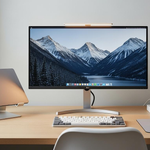
An external monitor is one of the most important accessories for a Chromebook home office. It provides a larger screen and allows you to work with multiple applications at once, which is especially useful for online meetings and video conferences.
Depending on your Chromebook model, you may connect an external display using a USB-C or HDMI cable. If your device does not have the necessary ports or supports only specific display resolutions, you may need a USB-C hub or video adapter.
Before purchasing a monitor, check its size and resolution against your Chromebook’s specifications to ensure compatibility.
Best for: Remote work, students, writers, and multitasking.
Shop External Monitors on Amazon.com
2. Wireless Keyboard
A wireless keyboard is another useful accessory for a Chromebook home office. Besides making typing more comfortable for tasks such as report writing and online classes, it offers greater flexibility in positioning. You can place the keyboard on a desk while keeping your Chromebook on a stand.
Bluetooth keyboards typically offer the most flexibility because they do not require a USB port. Some models also include a numeric keypad, which can be useful for spreadsheet work.
Before finalizing your purchase, check the keyboard’s wireless connectivity, key layout, and overall weight. If you plan to use it in different locations, a Bluetooth keyboard with multi-device connectivity may be worth considering.
Best for: Writers, students, office workers, and people who regularly edit text.
Shop Wireless Keyboards on Amazon.com
3. Wireless Mouse
A wireless mouse is another simple yet effective accessory that can make your Chromebook home office more productive and comfortable.
While the built-in trackpad is adequate for casual use, a mouse can offer better precision and control, which is useful for certain applications. A Bluetooth mouse is particularly convenient for a Chromebook because it does not require a USB-A port.
Beyond everyday productivity tasks, a mouse can be useful for multitasking, spreadsheet work, and graphic editing.
When purchasing a wireless mouse, consider its intended use, weight, and features. Some models allow you to customize click settings or offer silent buttons, making them suitable for a quiet home office.
Best for: Everyday use, online meetings, and casual or professional work.
Shop Wireless Mice on Amazon.com
4. USB-C Hub or Docking Station
One limitation of some Chromebooks is their limited number of ports, which can make connecting multiple accessories difficult. A USB-C hub or docking station can expand your device’s connectivity and versatility.
Depending on the model, USB-C hubs may support USB-A, HDMI, DisplayPort, Ethernet, SD card readers, and USB-C Power Delivery.
In other words, a single compatible USB-C connection can provide multiple connectivity options.
Before purchasing a USB-C hub, review your Chromebook’s specifications to identify the available ports and confirm that they support the functions you need.
Best for: Expanded connectivity, remote work, and everyday use.
5. Chromebook Stand or Laptop Riser
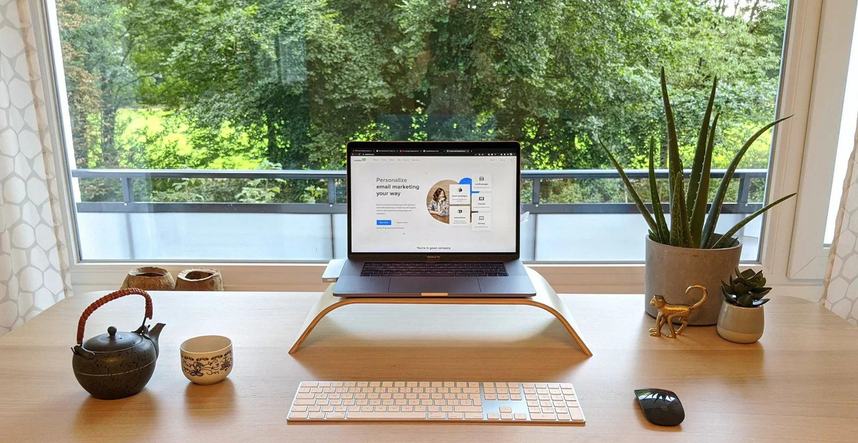
A Chromebook stand or laptop riser is an excellent home-office accessory because it elevates your device and provides a more comfortable viewing angle. This can help reduce neck strain during long working sessions.
Most stands are made of aluminum or plastic and may include a folding mechanism that makes them easy to store when not in use.
A stand is particularly useful when combined with a wireless keyboard and mouse because it allows you to position your Chromebook screen separately from your typing area.
Best for: Long working hours, improved comfort, and remote work.
Shop Chromebook Stands on Amazon.com
6. External SSD or USB Flash Drive
An external SSD is a useful accessory that can expand your Chromebook’s available storage. It is particularly valuable if you regularly work with large files or need to transfer data between devices.
An external flash drive, SSD, or hard drive can provide additional storage when your Chromebook’s internal capacity is insufficient. However, before purchasing an external storage device, check its compatibility with ChromeOS.
Modern USB-C flash drives can connect directly to compatible Chromebooks, while traditional USB-A drives may require an adapter if your device lacks a USB-A port.
ChromeOS supports cloud storage, so an external drive may not be necessary for every user. However, when dealing with large files or important documents, external storage can provide a convenient additional option.
If you plan to store sensitive information, consider a drive with encryption support and maintain a separate backup of important files.
Best for: Students, remote workers, everyday file storage, and file transfers.
Shop Portable External SSDs on Amazon.com
7. Webcam for Video Meetings
While most Chromebooks come with a built-in webcam, an external webcam can be a useful upgrade for online meetings.
Depending on the model, an external webcam may provide improved image quality, a wider field of view, and more flexible positioning.
Since webcams are primarily used in home-office environments, you may also want to consider a privacy cover or built-in privacy features.
Before purchasing a separate webcam, make sure it is compatible with your Chromebook and the video-conferencing applications you use.
Webcams typically connect through USB, but available ports and supported features can vary between Chromebook models.
Best for: Remote work, video meetings, and online conferences.
Shop USB Webcams on Amazon.com
8. Headset or Noise-Canceling Headphones
A headset or pair of noise-canceling headphones is another useful accessory for a Chromebook home office, especially if you need to concentrate on your work.
A headset with a good microphone can make your voice clearer during online meetings, while noise-canceling headphones can reduce distracting background sounds.
Bluetooth headsets are convenient because they do not require a physical connection to your Chromebook. However, a USB headset may also be a suitable choice, depending on your preferences and your device’s available ports.
When purchasing headphones or a headset, consider the connection method, comfort, battery life, and compatibility with your Chromebook and meeting applications.
Best for: Remote work, calls, online meetings, and everyday use.
Shop Headsets and Noise-Canceling Headphones on Amazon.com
9. External Microphone
An external microphone can be a valuable accessory for a Chromebook home office, particularly if you frequently participate in online meetings or create content.
A dedicated microphone may provide clearer voice capture than a basic built-in microphone, depending on the device and recording environment.
For home-office use, a USB microphone can be convenient because many models connect directly without requiring specialized software. Options include compact microphones for video calls and more advanced models for recording and content creation.
Before purchasing an external microphone, check its compatibility with your Chromebook and the communication tools you use. Also, make sure your device has the necessary port or that you have a compatible adapter.
Best for: Online meetings, video chats, and content creation.
Shop USB Microphones on Amazon.com
10. USB-C Charger and Charging Cable
A USB-C charger and charging cable are important accessories for a Chromebook home office. Depending on your needs, you may want a separate charger or a multiport charging station.
Some USB-C chargers can also charge smartphones, tablets, and other compatible devices, reducing the number of adapters you need on your desk.
When purchasing a USB-C charger, make sure it supports your Chromebook’s charging requirements and the appropriate USB-C Power Delivery specifications.
You should also consider cable length and portability to ensure that the charger fits comfortably into your workspace.
Best for: Charging, everyday use, remote work, and home offices.
Shop USB-C Chargers on Amazon.com
11. Laptop Backpack or Sleeve
Even if you mainly use your Chromebook at home, a laptop sleeve can protect your device from scratches and other surface damage. If you frequently carry your Chromebook between locations, a sleeve can provide an additional layer of protection.
Laptop backpacks are ideal for users who travel regularly with their Chromebooks. Choose a backpack or sleeve that matches your laptop’s dimensions rather than relying solely on its advertised screen size.
Many laptop backpacks also provide additional storage for accessories. Separate compartments for your Chromebook, charging cable, mouse, USB hub, and other items can make organization easier.
Laptop sleeves and backpacks are available in a wide variety of materials, so consider durability, padding, and comfort before making a purchase.
Best for: Students, remote workers, and everyday use.
Shop Chromebook Sleeves and Backpacks on Amazon.com
12. Surge Protector or Power Strip
A power strip or surge protector is often overlooked when setting up a Chromebook home office, but it can be useful for managing multiple connected devices.
A power strip provides additional outlets for your Chromebook charger, external monitor, desk lamp, and other accessories. A properly rated surge protector can also help protect connected electronics from certain voltage spikes.
When purchasing a power strip or surge protector, make sure it meets your local electrical standards and provides enough outlets for your setup.
If you want to charge USB devices directly, you can also consider a model with built-in USB ports. However, confirm that its charging output is appropriate for your devices.
Best for: Home offices, remote work, and everyday use.
Shop Surge Protectors on Amazon.com
13. Desk Lamp
A desk lamp is another useful accessory for a home office because it provides additional lighting for your workspace.
Depending on the model, desk lamps may offer adjustable brightness and different color-temperature settings to suit your activities.
A standard desk lamp can be a convenient option for students and writers who regularly read or work with documents. Lamps with USB ports, touch controls, and adjustable arms may also provide additional convenience.
Make sure the lamp is positioned to avoid glare on your Chromebook display. Avoid placing the light source directly in your line of sight.
Best for: Students, writers, remote workers, and home offices.
Shop LED Desk Lamps on Amazon.com
14. Cable Organizer
A cable-management accessory, such as a cable organizer or reusable cable ties, can help keep your Chromebook home office neat.
These accessories help organize the cables connected to your monitor, Chromebook charger, mouse, and other devices.
If you use a docking station or USB-C hub, make sure your cables are arranged neatly and remain within easy reach. Cable clips can keep wires in place, while under-desk trays can help hide excess cables.
Cable organizers come in a variety of sizes and designs. For a small home office, reusable cable ties may be sufficient. For a more complex setup, consider a cable tray or cable sleeve.
Best for: Home offices, everyday use, and remote work.
Shop Cable Organizers on Amazon.com
Chromebook Home Office Accessories Comparison
| Accessory | Main Benefits | Best For |
|---|---|---|
| External Monitor | More screen space and easier multitasking | Remote work, students, and office tasks |
| Wireless Keyboard | More comfortable typing and flexible positioning | Writers, students, and office workers |
| Wireless Mouse | Better precision and control | Everyday use and remote work |
| USB-C Hub | Expanded connectivity options | Multitasking and connecting peripherals |
| Chromebook Stand | Improved screen positioning and comfort | Long working sessions |
| External SSD | Additional storage for files | Students and remote workers |
| External Webcam | Flexible positioning and video quality | Online meetings and video calls |
| Headset or Headphones | Clearer calls and reduced distractions | Remote work and online meetings |
| USB Microphone | Improved voice capture | Video chats and content creation |
| USB-C Charger | Convenient and reliable charging | Everyday use and home offices |
| Laptop Sleeve or Backpack | Protection and portability | Students and travelers |
| Surge Protector | Additional outlets and surge protection | Multi-device workstations |
| Desk Lamp | Improved workspace lighting | Students, writers, and remote workers |
| Cable Organizer | Reduced cable clutter | Organized home offices |
How to Choose the Most Productive Accessories for a Chromebook
The right accessories can turn a basic Chromebook into a more capable home-office setup. However, not every accessory will be necessary for every user.
For example, if you spend most of your time writing, a wireless keyboard may be a priority. If you regularly work with spreadsheets and multiple applications, an external monitor and wireless mouse may be more useful.
Consider your needs and current projects before making a purchase. Start with the accessories that are likely to have the greatest impact on your productivity.
Make sure each accessory is compatible with your Chromebook before purchasing it. Pay particular attention to connectivity options, charging requirements, and compatibility with the applications you use.
For instance, many webcams work with Chromebooks, but it is still important to verify that a particular model supports your video-conferencing application.
Finally, prioritize the comfort and convenience of your workspace. A well-organized setup can make everyday work easier and help reduce discomfort associated with long periods of computer use.
Invest in convenient, durable accessories that meet your needs and fit your budget. With a few carefully selected upgrades, you can build a productive and comfortable Chromebook home office.
The advice should clearly distinguish between a monitor stand and a laptop stand. Here’s the corrected section for your Chromebook article.
Adjustable Laptop Stand or Monitor Stand
Choose the stand based on the device you want to raise. An adjustable laptop stand is designed to elevate your Chromebook, helping position its screen closer to eye level. A monitor stand is intended for a separate external monitor and should not be recommended as a direct replacement for a laptop stand unless it has a suitable, stable platform for the Chromebook.
If you regularly work with your Chromebook’s built-in screen, choose a stable laptop stand that fits its size and weight and allows adequate ventilation. If you use an external monitor, consider a separate monitor stand to improve screen positioning and free up desk space.
Best for: Improving screen height, posture, and desk organization.
Shop Chromebook Laptop Stands on Amazon.com
Shop Monitor Stands on Amazon.com
Amazon Affiliate Disclosure: As an Amazon Associate, I earn from qualifying purchases. If you buy something after clicking an Amazon.com link in this article, I may earn a commission.