Working with two computers can be unexpectedly inconvenient when both need access to the same monitor, keyboard, and mouse.
Your home PC might handle everyday office tasks while a more powerful computer manages graphics or demanding applications. Alternatively, you might use one computer for business and another for personal activities.
The challenge is finding a monitor arrangement that lets both computers work efficiently without cluttering your desk.
There is no single best way to set up two computers. Some users need one display that switches between machines, while others prefer two monitors that remain connected or a single ultrawide screen that displays both computers simultaneously.
The ideal setup depends on your workflow, available desk space, and how frequently you switch between computers.
1. One Monitor With Two Inputs
The simplest way to use two computers at one desk is to connect both to a monitor with multiple video inputs.
For example, you could connect a desktop PC through DisplayPort and a laptop through HDMI or USB-C. When you want to switch computers, select the appropriate input using the monitor’s controls.
Some monitors automatically detect an active signal, while others require you to select the input manually.
This arrangement works particularly well if you use the computers at different times rather than simultaneously. It also saves desk space, making it useful for compact home offices and shared work areas.
However, changing the monitor input does not automatically switch your keyboard and mouse. You will need to connect those devices separately, use peripherals that support multiple computers, or purchase a USB switch.
Before buying a monitor, check that it has the required inputs and supports the resolution and refresh rate your computers can deliver.
Best for: People who switch between two computers and want a simple, space-saving setup.
Shop Monitors With Multiple Inputs on Amazon.com
2. Two Monitors for Both Computers
Two monitors can provide greater flexibility if you regularly work across multiple applications or need to access both computers throughout the day.
One option is to connect a separate monitor to each computer. Another is to connect both displays to your primary computer and use a switching solution when you need to access the second machine.
For example, an accountant might use one display for spreadsheets and another for email or reference documents. A developer might prefer two screens connected to the primary computer, with a separate display arrangement for testing or managing another system.
The main advantage is additional screen space, but two monitors also require more desk space, power, and cabling.
Check the display capabilities of both computers before purchasing additional monitors. Some laptops have limits on external display support or require a compatible dock to connect multiple screens.
Best for: Heavy multitaskers who need additional screen space or regularly work on both computers.
Shop Dual-Monitor Setups on Amazon.com
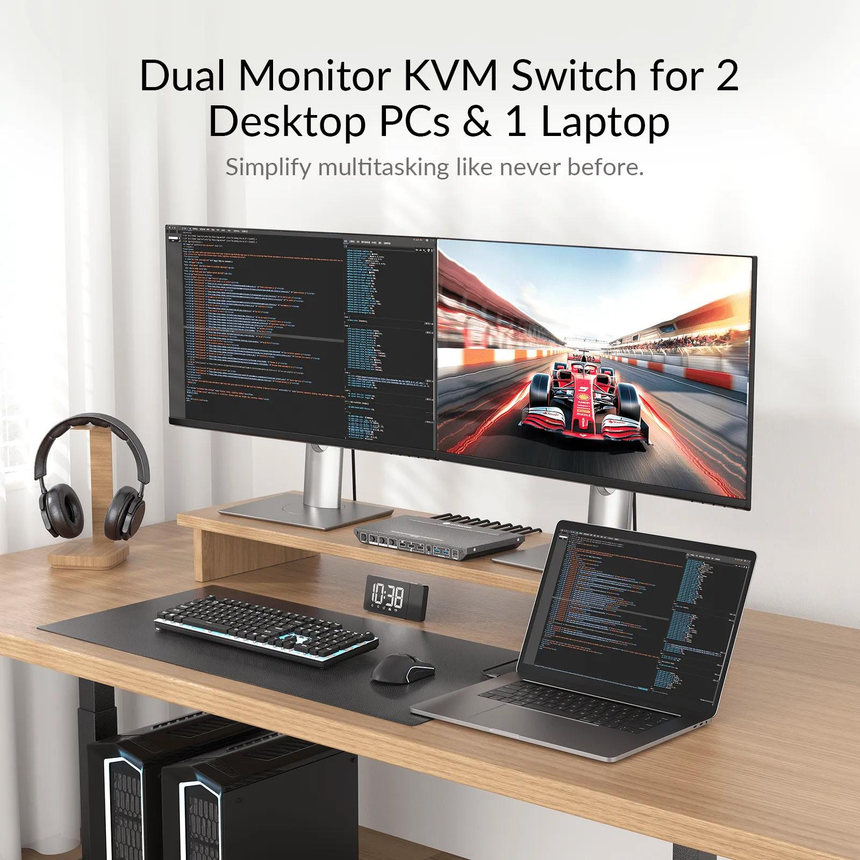
3. Use a KVM Switch to Share Your Monitor, Keyboard, and Mouse
A keyboard, video, and mouse (KVM) switch allows multiple computers to share a monitor, keyboard, and mouse.
Instead of changing the monitor input and switching peripherals separately, you can use a button or supported hotkey to move control between computers.
KVM switches range from basic models that connect two computers to more advanced devices that support multiple displays, higher resolutions, and faster refresh rates.
When choosing one, check the supported video standard, maximum resolution, refresh rate, and USB capabilities. A switch designed for basic office work may not support the full performance of a high-refresh-rate gaming monitor.
You should also confirm whether the KVM supports the number of computers and displays you intend to connect.
Best for: People who frequently switch between computers but want to keep using the same keyboard, mouse, and monitor.
Shop KVM Switches for Two Computers on Amazon.com
4. Choose a Monitor With a Built-In KVM Switch
Some monitors include a built-in KVM switch, allowing two computers to share the display’s connected USB peripherals without requiring a separate KVM device.
For example, you could connect a desktop through DisplayPort and a laptop through USB-C, then switch the keyboard and mouse between the two systems using the monitor’s KVM feature.
Certain monitors also support USB-C power delivery, which can provide video, data, and charging through one cable when paired with a compatible laptop.
However, not every monitor with USB-C includes a KVM switch. Check the specifications carefully to confirm that the feature is supported and that the monitor can switch between your intended connections.
You should also verify the available USB ports, charging capabilities, and supported resolution and refresh rate.
Best for: People who want a cleaner dual-computer setup with fewer separate devices.
Shop Monitors With Built-In KVM Switches on Amazon.com
5. Use an Ultrawide Monitor Instead of Two Screens
An ultrawide monitor provides a broader workspace without the bezel between two separate displays. It can be useful for comparing documents, managing spreadsheets, editing video timelines, and keeping multiple applications visible.
For a dual-computer setup, look for a monitor with multiple video inputs and picture-by-picture (PBP) functionality. PBP divides the display into separate areas so that you can view signals from two computers simultaneously.
Picture-in-picture (PIP) is another option, but it usually displays one computer in a smaller window rather than giving both systems equal screen space.
An ultrawide monitor does not automatically replace a KVM switch. If you want to share a keyboard and mouse between computers, you may still need a separate switching solution.
Check the monitor’s resolution, aspect ratio, supported inputs, and PBP capabilities before buying. Some displays reduce the resolution available to each computer when showing two inputs at once.
Best for: Users who want a large, continuous display for side-by-side work.
Shop Ultrawide Monitors With PBP on Amazon.com
6. Add a Dock for Your Laptop and Desktop Setup
A docking station can simplify connections when you regularly use a laptop alongside a desktop computer.
A compatible dock may provide USB ports, Ethernet, and video connectivity for a laptop with limited ports. You can keep the desktop connected to the monitor through one input and connect the laptop through a dock or another supported input.
This makes it easier to connect and disconnect a laptop without repeatedly unplugging individual accessories.
However, a dock is not necessarily a KVM switch. It expands a computer’s connectivity but does not automatically allow two computers to share the same monitor and peripherals.
Depending on your setup, you may still need to switch monitor inputs or add a separate KVM or USB switch.
Best for: People who regularly connect a laptop to an established desktop workstation.
Shop USB-C and Thunderbolt Docks on Amazon.com
7. Use a USB Switch for Shared Peripherals
If your monitor already supports multiple inputs, a USB switch may be enough to share a keyboard, mouse, webcam, printer, or other USB devices between two computers.
The switch connects your peripherals to one computer at a time. When you change the active connection, those devices become available to the other computer without needing to unplug them manually.
This can be a more affordable option than a full KVM switch if you only need to share USB accessories and are comfortable switching the monitor input separately.
Keep in mind that a standard USB switch does not carry the monitor’s video signal. Video switching must be handled by the monitor or another compatible device.
Check the supported USB standard, data-transfer speed, and power requirements, particularly if you plan to connect external storage or a high-resolution webcam.
Best for: People who already own a suitable monitor and need an easy way to share peripherals.
Shop USB Switches for Two Computers on Amazon.com
8. Prioritize Screen Size, Resolution, and Refresh Rate
The best monitor for a dual-computer setup depends on your applications, viewing distance, and available space—not simply the number of displays.
For everyday office work, a 27-inch monitor with a 1440p or 4K resolution can provide enough room for documents, browser windows, and spreadsheets. A 4K display can produce sharper text, although the result also depends on operating-system scaling and viewing distance.
Creative professionals should consider color accuracy, panel quality, resolution, and connectivity. Gamers may place greater importance on refresh rate and input lag.
If you need to use both computers simultaneously, an ultrawide display with PBP or two separate monitors may be more useful than a single screen that switches between inputs.
Before purchasing, confirm that both computers can support your desired resolution and refresh rate through the selected cable, dock, or KVM switch.
Best for: Users who want a display suited to their specific work requirements.
Shop 27-Inch 4K Monitors on Amazon.com
Shop High-Refresh-Rate Monitors on Amazon.com
9. Position Your Displays for Comfortable Viewing
The physical arrangement of your monitors can make a difference during long work sessions.
If you use two screens equally, place them side by side with their inner edges close together. If one monitor is used more frequently, position it directly in front of you and place the secondary display to the side.
Monitor arms can provide more flexibility when adjusting screen height, tilt, and angle while freeing up desk space.
Before purchasing an arm or stand, check the monitor’s weight, mounting-hole pattern, and compatibility with the support.
Laptop users may also benefit from a separate laptop stand, especially when the laptop serves as an additional display. The aim is to position screens comfortably without placing the keyboard and mouse too far away.
Best for: People who spend extended periods at a desk and want a more practical display arrangement.
Shop Dual-Monitor Arms on Amazon.com
Shop Adjustable Laptop Stands on Amazon.com
10. Organize Cables Across Both Computers
A two-computer workstation can involve multiple video cables, USB connections, charging leads, and power adapters. Organizing them properly makes the desk easier to maintain and simplifies switching between systems.
Start by deciding where each computer, monitor, and switching device will sit. Choose cables of suitable lengths and label them if you regularly disconnect or reconnect equipment.
Cable clips and reusable ties can keep wires together, while an under-desk tray can hold excess cables and power strips.
Leave enough slack to adjust monitors or move a laptop without pulling on connections. Avoid pinching cables under monitor arms or placing them where they create a tripping hazard. Power adapters should also have adequate ventilation.
Best for: People who want an organized workstation with multiple computers and peripherals.
Shop Desk Cable Management Accessories on Amazon.com
Which Dual-Computer Monitor Setup Is Best for You?
| Setup | Main advantage | Best use case |
|---|---|---|
| One monitor with multiple inputs | Simple and space-saving | Switching between computers |
| Two monitors | More room for applications | Heavy multitasking |
| KVM switch | Shares video and peripherals | Frequent computer switching |
| Monitor with built-in KVM | Fewer separate devices | Integrated dual-computer setup |
| Ultrawide with PBP | Displays both computers together | Side-by-side workflows |
| USB switch with monitor inputs | Affordable peripheral sharing | Basic dual-computer desks |
Final Thoughts
The best monitor setup for people who use two computers depends on how they work.
If you switch between machines, a monitor with multiple inputs may be sufficient. A KVM switch or a monitor with built-in KVM functionality can also share your keyboard and mouse. If you need both computers visible at the same time, two monitors or an ultrawide display with PBP may be a better choice.
Before buying, check the video outputs on both computers, the monitor’s inputs, and the resolution and refresh rate supported by your chosen connections. With the right combination of equipment, you can create a practical dual-computer workspace without unnecessary clutter or expense.