Watching family-friendly shows on Disney+ can be easy to manage until everyone wants to watch something different. One child may want to watch animation, another may want a superhero movie, while adults may prefer something more dramatic after the kids have gone to sleep.
Sharing one Disney+ profile can cause problems, including mixed recommendations, messy watchlists and children accidentally finding content that isn’t suitable for their age.
Fortunately, Disney+ offers individual profiles and several parental control features to help families manage their viewing experience.
Setting these up only takes a short amount of time but can make a real difference.
The aim is to create individual profiles, protect adult profiles with PINs and ensure children can only access content suitable for their age.
Here is how to set up Disney+ profiles and parental controls.
1. Start With the Correct Profile Layout
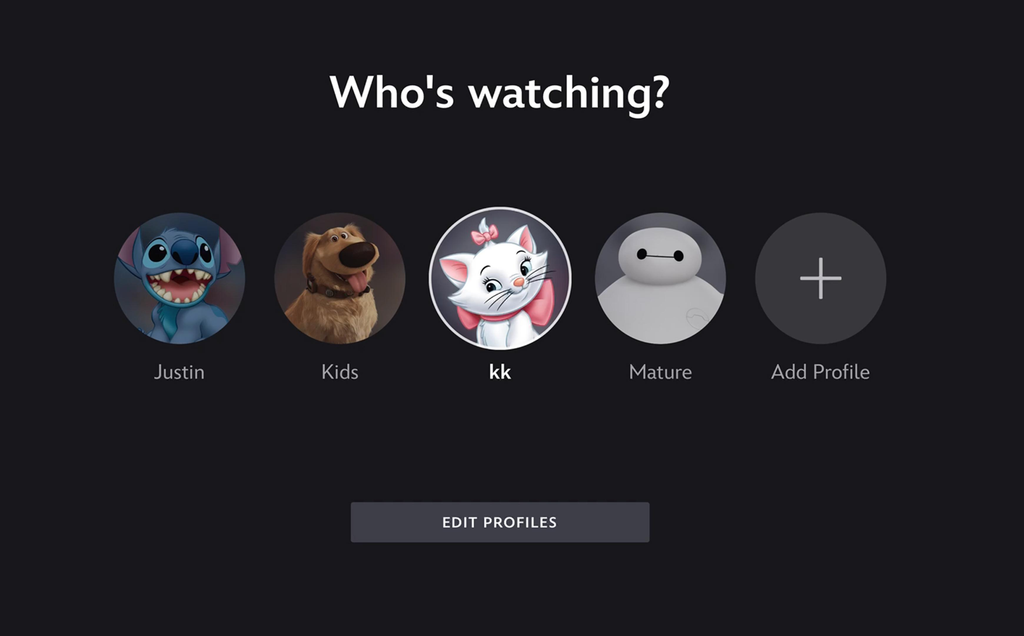
Before making changes to parental controls, consider how everyone in your household watches TV.
Disney+ allows up to 7 profiles on one account, including the main profile and 6 additional profiles.
Each profile can have its own watch history, recommendations and watchlist.
A typical family may want to organise profiles like this:
| Profile | Recommended Setup | Reason |
|---|---|---|
| Parent 1 | Adult profile with PIN | Watch movies and mature shows |
| Parent 2 | Adult profile with PIN | Individual recommendations |
| Child 1 | Junior Mode | Suitable for younger children |
| Child 2 | Age-restricted profile | More suitable for older children |
| Family | General profile | Watch movies and shows together |
You may not need all these profiles. If you only have one child, you may only need two or three.
The key is to avoid allowing everyone to use one shared profile.
Why Having Separate Profiles Helps
Having separate profiles will:
- Give everyone individual recommendations based on what they watch.
- Allow children and adults to have their own watchlists.
- Make it easier to manage content ratings.
- Keep viewing histories separate.
- Help family members find their preferred shows.
It’s also good practice to make profile names and avatars easily identifiable so children can find the correct profile.
2. How to Create Disney+ Profiles
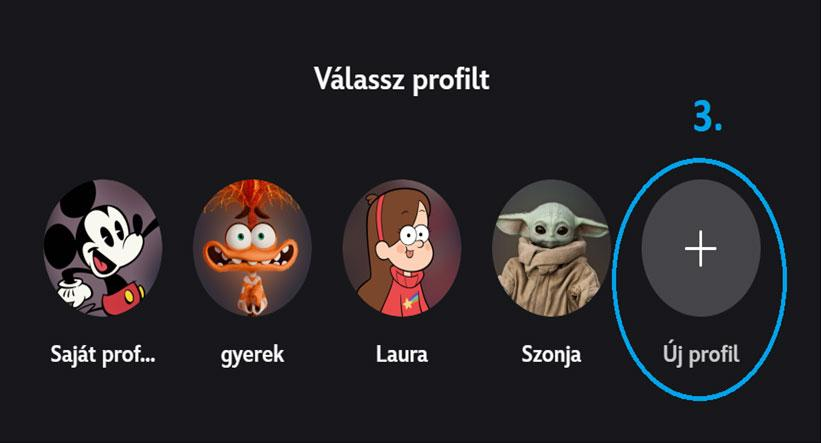
Creating profiles on Disney+ is straightforward.
Simply open the Disney+ app or use a supported web browser.
Follow these steps:
- Open Disney+.
- Click the profile icon.
- Select Add Profile.
- Choose a character avatar.
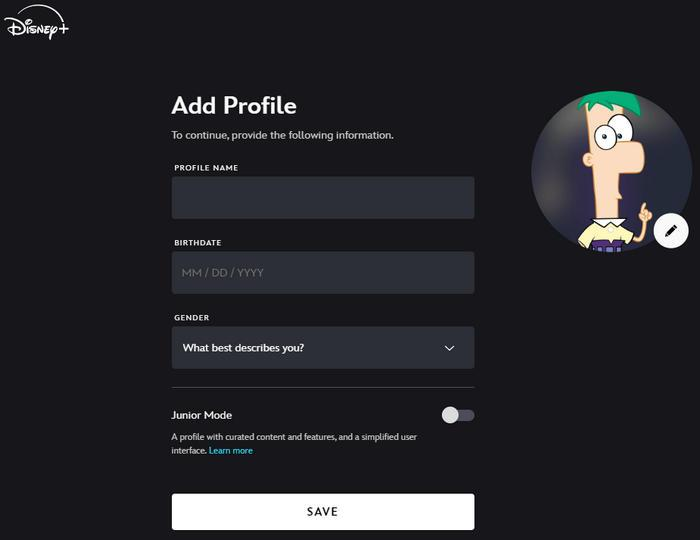
- Enter a profile name.
- Enter your date of birth.
- Select whether you want to enable Junior Mode.
- Click Save.
The profile menu location depends on your device.
- Web browser: Usually located in the top-right corner.
- Mobile devices: Usually located at the bottom of the screen.
- Connected TVs: Open the navigation menu.
You can also edit existing profiles.
Profiles can have names of up to 30 characters. The main profile is automatically created when you register an account. You cannot delete this profile or turn it into Junior Mode.
Top Tip for Parents
Create children’s profiles before giving them the remote or tablet. This gives you time to configure their profiles and parental controls.
3. Junior Mode – Easiest for Younger Children
If you have younger children, Junior Mode is one of the most useful Disney+ features.
It provides a simplified version of Disney+ that only displays content suitable for younger audiences.
Disney describes Junior Mode as easy to navigate, with age-appropriate content and no adverts.
How to Turn On Junior Mode
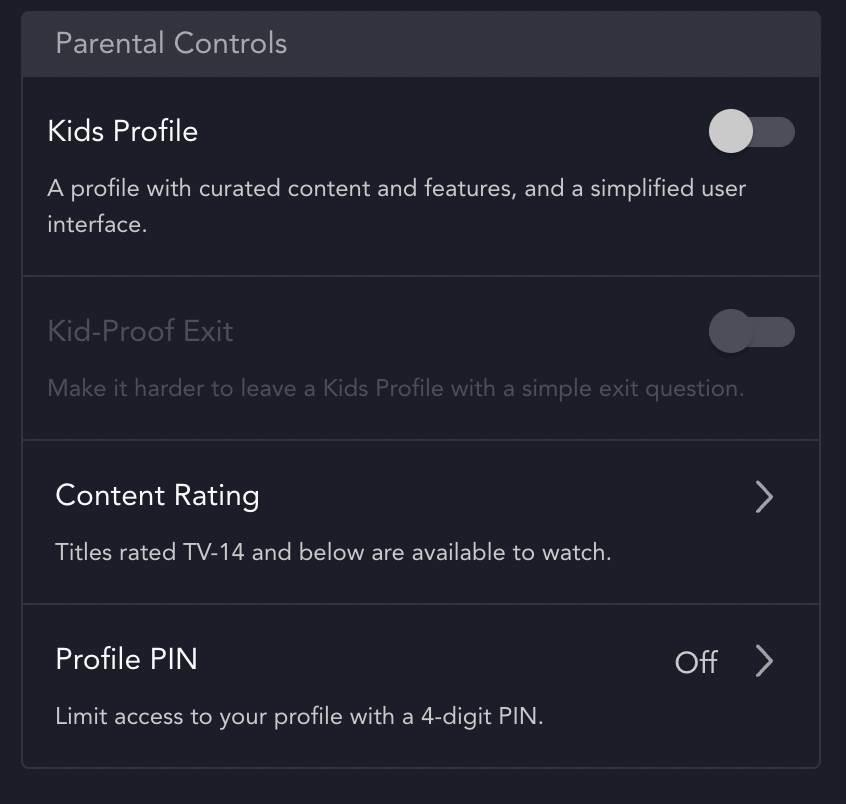
When creating a new profile or editing an existing one:
- Open Disney+ using a supported web browser or mobile app.
- Click the profile icon.
- Select Edit Profiles.
- Choose your child’s profile.
- Under Parental Controls, select Junior Mode.
- Turn Junior Mode on.
- Click Save.
The main profile cannot be switched to Junior Mode.
What Is Kid-Proof Exit?
Junior Mode also includes a feature called Kid-Proof Exit.
This adds an extra step when children attempt to leave Junior Mode, helping prevent younger viewers from switching to less restricted profiles.
To enable it:
- Open Edit Profiles.
- Select your child’s Junior Mode profile.
- Under Parental Controls, select Kid-Proof Exit.
- Turn the feature on.
- Confirm your selection if prompted.
This is particularly useful if your children know how to navigate streaming apps but don’t understand content restrictions.
Remember that Junior Mode doesn’t replace parental supervision. You should still regularly check what your children are watching.
4. Content Ratings – More Control for Older Children
Junior Mode is ideal for younger children, but older children may want more variety.
For example, a 12-year-old may enjoy adventure movies, superhero films and certain TV shows.
Disney+ offers content ratings that allow you to control what appears on individual profiles.
Understanding Content Ratings
Disney+ uses different TV and movie content ratings.
| Rating | Meaning |
|---|---|
| TV-Y | Young children |
| TV-Y7 | Children aged 7+ |
| TV-G | General audience |
| TV-PG | Parental Guidance Suggested |
| PG | Parental Guidance Suggested (Movies) |
| PG-13 | Some content may not be suitable for under 13s |
| TV-14 | Parents Strongly Cautioned |
| R | Restricted |
| TV-MA | Mature Audiences |
These are general guidelines and may not reflect the suitability of every individual title.
Parents should also consider programme descriptions and their children’s maturity when deciding which restrictions to use.
How to Change Content Ratings
- Open Disney+ on a supported web browser or mobile app.
- Click your profile.
- Select Edit Profiles.
- Choose the profile you want to manage.
- Under Parental Controls, select Content Rating.
- Choose the appropriate rating.
- Enter your Disney+ account password if requested.
- Click Save.
Top Tip: The main profile and profiles with an adult date of birth will default to TV-MA. Parents should check these settings.
What Content Rating Should You Set?
Consider your child’s age, maturity and the type of programmes you are comfortable allowing them to watch.
- Younger children: Start with Junior Mode.
- Elementary school children: Consider a restricted standard profile.
- Pre-teens: Review content ratings and select an appropriate restriction.
- Teenagers: Consider an age-appropriate content rating and keep adult profiles protected.
There is no one-size-fits-all option.
5. Protect Adult Profiles With a PIN
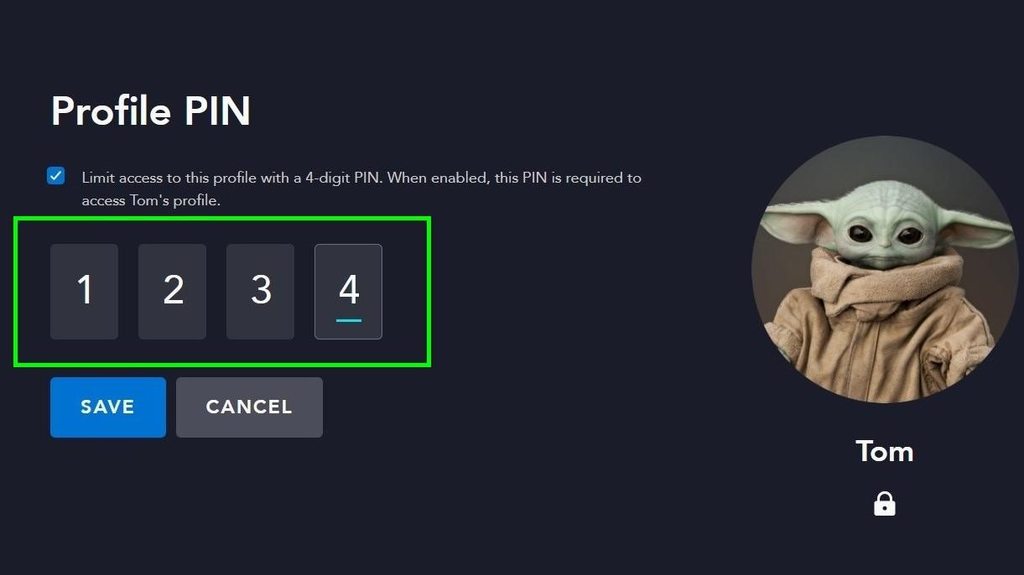
Once you have created restricted profiles for your children, you should also protect adult profiles.
Disney+ offers a 4-digit profile PIN to help prevent other household members from accessing protected profiles.
How to Set a Profile PIN
- Open Disney+ on a supported web browser or mobile app.
- Go to your profiles.
- Select Edit Profiles.
- Choose the adult profile you want to protect.
- Under Parental Controls, select Profile PIN.
- Enter your Disney+ account password if requested.
- Create your 4-digit PIN.
- Click Save.
Repeat this process for any other adult profiles.
What If You Forget Your PIN?
Disney+ provides a PIN recovery option.
When prompted to enter your PIN, select Forgot PIN and follow the instructions to verify your account.
Why This Matters
Imagine your child finishes watching a cartoon and decides to explore another profile.
If your adult profile isn’t protected, they may accidentally open it and find programmes that aren’t suitable for them.
Adding a profile PIN provides an extra layer of protection between children’s profiles and unrestricted viewing.
6. Stop Children From Creating Extra Profiles
Another important setting is preventing children from creating additional profiles.
Even if you have configured the correct content ratings, your setup may not be effective if children can create unrestricted profiles.
Disney+ offers an option to require the account password when someone attempts to create a new profile.
How to Stop Children Creating Extra Profiles
- Open your Disney+ account settings.
- Go to Settings.
- Find Restrict Profile Creation.
- Turn this option on.
- Enter your account password.
Now, anyone attempting to create additional profiles will need permission from the account holder.
This is particularly useful if younger children are comfortable navigating streaming apps and changing settings.
7. Don’t Forget Unrated Live Content
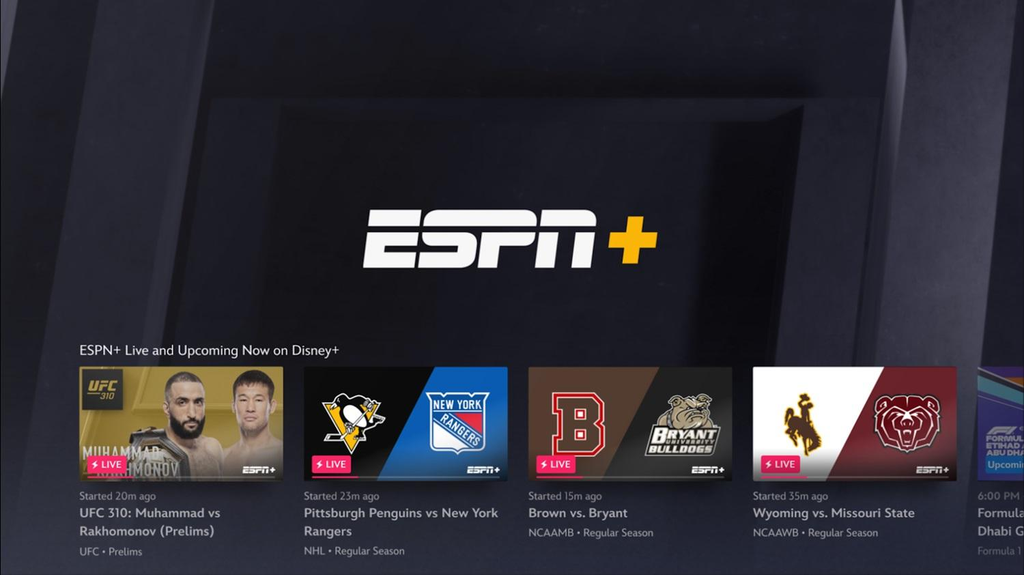
Disney+ offers more than movies and TV shows.
Depending on your subscription and location, you may also have access to live sports, news and other content.
Some live content may not have the same maturity ratings as regular movies and TV programmes.
Disney+ includes an option called:
Allow Unrated Titles
This can include live sports, news and other content.
It is enabled by default on normal profiles.
If you want stricter restrictions, check this setting individually for your children’s profiles.
How to Change This Setting
- Open Edit Profiles.
- Select your child’s profile.
- Go to Parental Controls.
- Find Allow Unrated Titles.
- Turn it off if you don’t want the profile to access unrated content.
This setting is already excluded from Junior Mode.
Disney also notes that unrated live content and advertising may contain mature themes, products and services.
8. Set Up Disney+ on All Family Devices
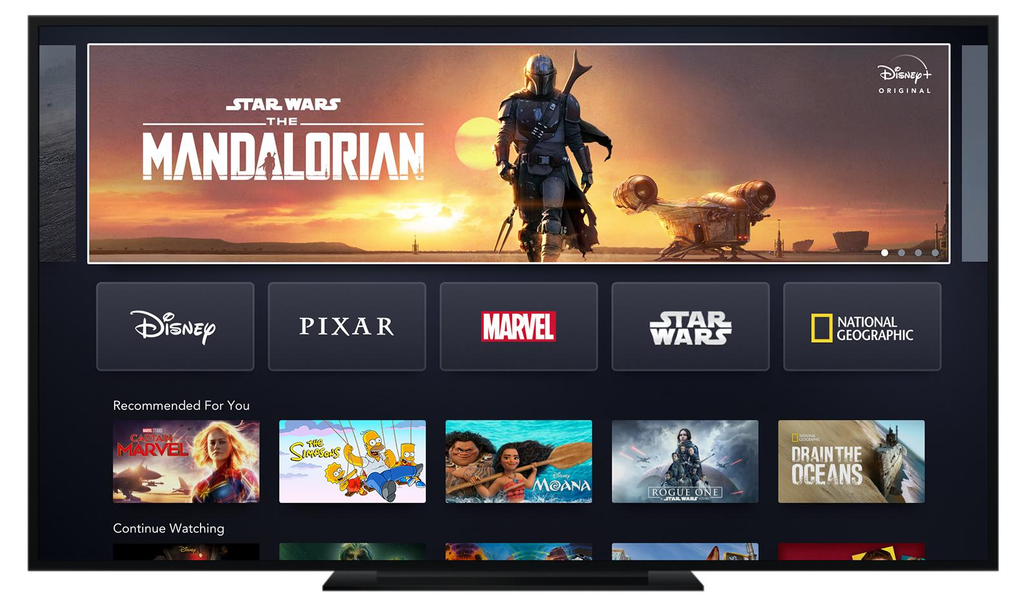
Having a well-organised account won’t help much if everyone doesn’t know how to access the correct profile.
Disney+ is available on supported smart TVs, streaming devices, smartphones, tablets and computers.
The layout may vary slightly depending on your device, but selecting the correct profile is straightforward.
Smart TV
- Open the Disney+ app.
- Go to the profile menu.
- Select the correct family member.
- Ensure the correct profile is selected.
Smartphone or Tablet
- Open the Disney+ app.
- Click the profile icon.
- Select the profile you want.
- Browse the personalised homepage.
Computer
- Visit DisneyPlus.com.
- Log in.
- Click the profile icon.
- Select the correct profile.
Remember that parental controls must be configured using a supported web browser or mobile app. Some profile settings may not be available directly on connected TVs.
9. Disney+ Family-Friendly Setup Checklist
Before allowing everyone to use the account freely, take a few minutes to check the following:
- Create individual profiles for regular viewers.
- Enable Junior Mode for younger children.
- Enable Kid-Proof Exit on children’s Junior Mode profiles.
- Set appropriate content ratings for older children.
- Add 4-digit PINs to adult profiles.
- Enable Restrict Profile Creation.
- Check unrated live content settings.
- Ensure the correct profile is selected on shared devices.
- Regularly check profiles and parental controls.
10. Common Disney+ Profile Issues and How to Fix Them
Sometimes, even when everything is set up correctly, you may notice unexpected behaviour.
Here are some common issues and what to check.
A Show Isn’t Showing on Your Child’s Profile
- Check whether the content rating is too restrictive.
- Check the maturity settings on the profile.
- Ensure the title is available in your region.
Some programmes may not be available because of licensing restrictions.
Your Child Can Access an Adult Profile
- Check that you have added a profile PIN to all adult profiles.
- Ensure children aren’t using the account holder’s unprotected profile.
Junior Mode Isn’t Available on My Main Profile
This is expected.
The main profile cannot be changed to Junior Mode.
Instead, create an individual profile for your child.
Children Keep Leaving Their Junior Mode Profile
Check that Kid-Proof Exit is enabled.
This makes it harder for younger children to switch profiles, although it shouldn’t be considered a complete security feature.
Extra Profiles Keep Being Created
Enable Restrict Profile Creation in your account settings.
This requires the account password before additional profiles can be created.
FAQs
1. How Many Profiles Can I Have on One Disney+ Account?
Disney+ allows up to 7 profiles, including the main profile. This means you can create up to 6 additional profiles.
2. Can I Have Individual Profiles for Each of My Children?
Yes. You can create individual profiles for your children, customise their names and avatars, and configure separate parental controls.
3. Is Disney+ Junior Mode the Same as a Kids Profile?
Junior Mode is a dedicated profile setting for younger children.
It limits the programmes they can watch and displays content suitable for all ages. Standard profiles can have customised content ratings.
4. Can I Use Parental Controls Without a PIN?
Yes. You can configure content ratings individually without adding a PIN.
However, adding PINs to adult profiles helps prevent children from accessing unrestricted viewing.
5. Can I Change a Child’s Profile to a Normal Profile?
Yes. You can turn off Junior Mode using a supported mobile app or web browser.
Disney+ may ask you to verify your account using your password.
6. Can Children Change Their Own Parental Controls?
Some restrictions and parental control settings require permission from the account holder.
Adding PINs to adult profiles and enabling Restrict Profile Creation can help prevent children from changing the setup.
7. Do Profiles Have Individual Watchlists?
Yes. Each profile has its own watchlist, recommendations and viewing history.
8. Can I Delete a Profile?
Yes. Open Edit Profiles, select the profile, choose Delete Profile and confirm.
Be careful because deleting a profile permanently removes its watch history.
9. Can I Use Parental Controls on a Smart TV?
Profiles and their restrictions can be used on supported connected TVs.
However, some parental control settings must be configured using a supported web browser or mobile app.
10. Are Disney+ Parental Controls Foolproof?
No. They help manage what children can watch but cannot replace parental supervision.
Children may still encounter unsuitable content on other devices, accounts and platforms.
Parents should regularly review the settings and monitor viewing habits.
Final Thoughts: Create a Safer Disney+ Experience for the Whole Family
Disney+ offers several useful features to help families manage their streaming experience.
Individual profiles, Junior Mode, content ratings and adult profile PINs can make it much easier to control what everyone watches.
Start by creating separate profiles for family members, enabling Junior Mode for younger children and setting suitable content ratings for older children.
Don’t forget to protect adult profiles with PINs and enable Restrict Profile Creation.
These small changes can make a real difference to how your family uses Disney+.
The aim isn’t to restrict everything but to make sure everyone can enjoy their favourite shows while keeping age-appropriate content accessible to children.