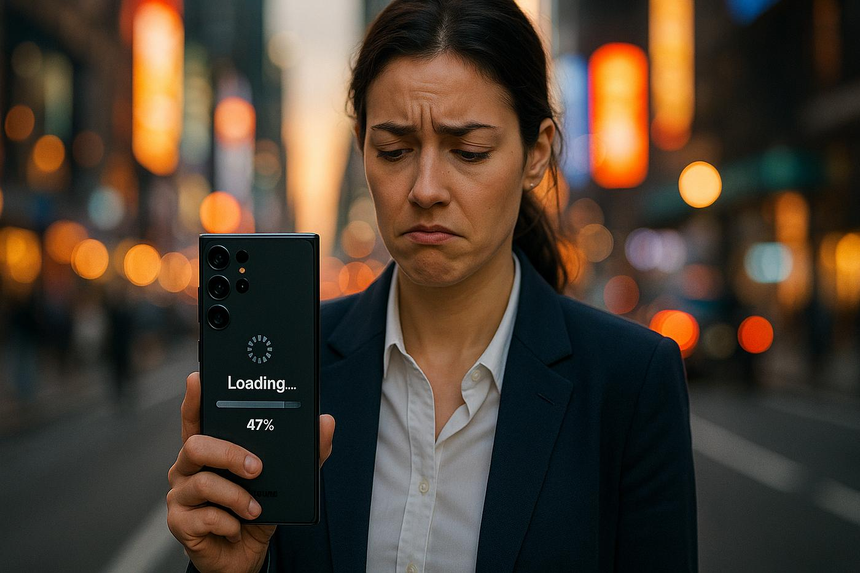
A phone doesn’t have to be old to be annoyingly slow. When the keyboard takes a second too long to appear, an app freezes as it launches, or the camera takes too long to load, it can feel like the device has seen its best days.
The first instinct is often to buy a new phone, but sluggishness can have multiple causes, and replacing your device won’t necessarily fix everything.
The better option is to understand why it has happened, what might be causing it, and what you can do about it.
Start by Understanding When Slowness Occurs
Not all slowdowns are the same, and the way they occur can offer useful clues about their cause.
If the entire phone seems sluggish, from opening Settings to switching between apps and typing messages, the issue could involve system performance, storage space, background activity, or a software glitch.
If only one app is slow, the app itself might be responsible, possibly because of a bug or excessive temporary data.
A phone that slows down mainly when gaming or recording videos could be struggling with the workload. In contrast, poor responsiveness when browsing the web or using social media might be related to the internet connection.
Instead of making multiple adjustments at once, begin by identifying the patterns. This makes it easier to determine whether a change has actually improved performance.
Storage Capacity Can Affect Performance
When storage space becomes limited, a phone may experience various issues. Applications, downloaded content, temporary data, and system processes all require storage to operate normally.
The effect of low storage depends on the device and operating system, so it should be considered a possible cause rather than an automatic explanation for every slowdown.
The first step is to check your available storage. On an iPhone, open Settings and select General, then iPhone Storage. On Android, the relevant option is usually under Settings and Storage, although the exact path varies by manufacturer.
Large videos, offline downloads, and apps you no longer use can often be removed to free up space. Deleting a few large files may have more impact than removing dozens of smaller ones.
Take care not to delete photographs or videos that haven’t been backed up elsewhere unless you’re certain they have been saved.
Maintaining reasonable free space is helpful, but you don’t need to keep your phone nearly empty.
Background Activity Can Get in the Way
Modern smartphones are designed to manage applications automatically. You don’t need to close every app as soon as you’re finished using it or clear the recent-apps screen whenever you switch tasks.
However, a particular app can cause trouble by repeatedly syncing data, using location services, uploading images, or consuming excessive battery power and system resources.
If you suspect an app is causing problems, begin by checking battery and app activity in Settings. Applications with unusually high usage may deserve closer attention, particularly if you haven’t been using them much.
Sometimes, an app is simply completing a resource-intensive task, such as backing up photographs over Wi-Fi. If you notice that this activity coincides with poor performance, try pausing it temporarily where possible.
If one particular app continues causing problems, updating it, reviewing its permissions, or reinstalling it may help.
Avoid downloading so-called phone booster apps that promise to free up memory or speed up your device. These apps may introduce unnecessary background activity, notifications, or advertisements instead of addressing the underlying problem.
A Hot Phone Can Slow Itself Down
If your phone worked fine in the morning but begins lagging throughout the day, overheating could be responsible.
Gaming, video recording, navigation, video conferencing, and charging can all increase a phone’s temperature. Hot weather, direct sunlight, certain cases, and intensive applications can make the problem worse.
To protect internal components, a phone may reduce its performance when it becomes too hot. This can affect games and camera operations, reduce screen brightness, and make the interface less responsive.
The best solution is to let the phone cool down. Move it away from direct sunlight and pause demanding tasks.
If it is charging and unusually hot, disconnect the charger. Removing the case temporarily may also help with heat dissipation. Avoid putting a hot phone directly into a refrigerator or freezer, as sudden temperature changes and condensation can cause damage.
If your phone frequently overheats during ordinary use, investigate possible software issues or problematic apps. Persistent overheating may require professional inspection.
Restarting Can Help, but It Isn’t Always the Answer
Restarting a phone is one of the simplest troubleshooting steps, yet it is often overlooked.
A restart can resolve certain temporary software problems, stop unresponsive processes, and give the operating system a fresh start.
It is particularly useful when a phone suddenly becomes slow or starts behaving strangely after running continuously for an extended period.
However, restarting won’t necessarily solve problems caused by full storage, a failing battery, or a hardware fault.
Use a restart as an initial diagnostic step rather than a daily maintenance routine. If the phone improves temporarily but becomes slow again, pay attention to the apps and activities that were running before the problem returned.
Software Updates Can Help—or Reveal Another Problem
Software updates provide security improvements, bug fixes, stability enhancements, and sometimes better performance. However, installing an update doesn’t guarantee that a phone will become faster.
After a major update, the phone may perform background tasks such as indexing files, organizing photographs, or completing system optimization. During this period, increased battery use and occasional sluggishness can occur.
If your phone becomes slow immediately after an update, give it some time to complete these tasks. Keeping it connected to power and a reliable Wi-Fi network may help when appropriate.
If performance doesn’t improve, check for subsequent updates and ensure that your apps are current. Before installing another major update, make sure important data is backed up and sufficient storage is available.
Remember that software support and performance are not the same thing. A phone may continue running everyday apps smoothly even if it no longer receives major operating system updates. Conversely, a newer phone may struggle because of a poorly optimized application.
Battery Problems Could Be Affecting Performance
Battery health is another factor worth investigating, especially with older devices.
Lithium-ion batteries gradually lose capacity over time. Depending on the phone’s design and battery condition, power-management behavior can also affect performance in certain circumstances.
A battery that struggles to hold a charge isn’t necessarily the direct cause of a sluggish phone, but the two problems can occur together.
On supported iPhones, battery information is available under Settings and Battery Health. Android battery-health options vary by manufacturer and model, so you may need to consult your device’s settings or support documentation.
If the battery has significantly deteriorated, compare the cost of professional battery replacement with the price of buying another device. If the rest of the phone remains reliable, replacing the battery may be a sensible investment.
If your phone becomes sluggish when the battery is low or powers down unexpectedly despite showing charge remaining, consider discussing the symptoms with a professional repair service.
A Poor Connection Can Feel Like a Faulty Phone
Sometimes, the problem isn’t with the phone itself.
Web pages that take too long to load, social media feeds that refuse to refresh, and videos that continually buffer can all make a phone feel slow when the real issue is the connection.
To distinguish between device performance and network problems, try viewing a locally stored photograph, navigating through Settings, or launching an offline app.
If these tasks perform normally but online services remain slow, investigate the connection.
Switch between Wi-Fi and mobile data. If possible, test another device on the same network to see whether it experiences similar problems.
A weak signal, overloaded Wi-Fi router, mobile data restrictions, or a temporary service interruption can all cause delays. Changing phones is unlikely to resolve an underlying connectivity problem.
When a Particular App Is Responsible
Your phone may appear slow because one application is experiencing problems.
An app can become unresponsive after an update, accumulate temporary data, or develop compatibility issues with an older operating system. Sometimes, a service outage can make an app appear faulty even when the phone itself is working normally.
Start by checking whether an update is available. If that doesn’t resolve the issue, force-stop the application on Android or close and reopen it on an iPhone.
Android users may also be able to clear an app’s cache through its settings. This is different from clearing storage or app data, which can remove settings, downloaded content, or locally stored information.
Reinstalling an app can sometimes resolve persistent software problems on either platform. Before doing so, make sure important information is backed up or synced and that you know how to sign in again.
If several unrelated apps are struggling, investigate system-level problems instead of repeatedly reinstalling individual applications.
The Final Option: Resetting the Phone
A factory reset can sometimes resolve persistent software problems, but it shouldn’t be the first response to a slow phone.
Resetting returns the device to its initial setup state and removes personal data and settings. It can help when other troubleshooting methods have failed, but it won’t repair defective hardware or fix a poor internet connection.
Before proceeding, back up photographs, contacts, messages, documents, authentication methods, and other important information. Confirm that the backup is complete and accessible.
You should also know the passwords and authentication details required to set up the phone again. Some applications store information locally, so a general backup may not restore everything.
If you perform a reset, test the phone before reinstalling all your applications. If it becomes sluggish after restoring a particular app or group of apps, that may provide a useful clue about the cause.
A factory reset should be a carefully considered troubleshooting measure, not a routine maintenance habit.
When It Might Be Worth Buying a New Phone
At some point, troubleshooting may no longer make financial or practical sense.
Consider replacing your device if it has multiple persistent problems, such as hardware failures, inadequate security support, compatibility issues with essential applications, or repair costs that approach the price of a suitable replacement.
The important thing is to consider the overall situation rather than relying on the phone’s age alone.
A device that reliably runs everyday applications, receives appropriate security updates, and meets your storage and battery needs may be worth keeping, even if it doesn’t match the latest flagship hardware.
Conversely, if the phone remains unresponsive despite reasonable troubleshooting and professional repair is uneconomical, upgrading may be the more practical choice.
What Actually Makes the Biggest Difference?
There isn’t a magic setting that makes every smartphone faster. The best solution depends on the cause of the problem.
If storage is nearly full, remove unnecessary files.
If one app is struggling, investigate its activity, updates, and cache.
If the phone is overheating, reduce its workload and allow it to cool down.
If online services are slow but offline tasks work normally, check the connection.
For system-level problems, a restart and appropriate software updates are sensible starting points. If battery deterioration or hardware failure is suspected, consider getting a professional diagnosis before spending money.
Most importantly, make one change at a time and test the result. This helps you identify what actually works instead of making multiple adjustments without knowing whether any of them helped.
A slow phone is frustrating, but it doesn’t always need to be replaced. Often, the most effective solution is to identify the specific problem and address it before spending money on a new device.
Quick Troubleshooting Checklist
| Problem | What to Do |
|---|---|
| Slow or frozen phone | Restart the device |
| Storage nearly full | Delete unused apps and large files |
| One app keeps lagging | Update, clear cache (Android), or reinstall |
| Phone feels hot | Pause demanding tasks and let it cool |
| Apps drain the battery | Check battery and app usage settings |
| Websites load slowly | Switch between Wi-Fi and mobile data |
| Slow after an update | Allow background tasks to finish; check for updates |
| Battery drains quickly | Check battery health and repair options |
| Still slow after troubleshooting | Seek a professional diagnosis |
| Nothing else works | Back up your data before considering a factory reset |
Before buying a new phone: Identify the cause, try the relevant fix, and check whether performance improves. Avoid a factory reset until simpler options have failed.
Amazon Affiliate Disclosure
As an Amazon Associate, I earn from qualifying purchases. If you click on an Amazon.com link in this article and make a purchase, I may earn a commission at no additional cost to you.